Support
Getting the picture
Spade Cam only sees the camera when your iPhone is on the camera's own Wi-Fi. Most problems start there.
Connect
- Turn the camera on.
- In Spade Cam, tap Connect to camera and pick the name your camera's Wi-Fi starts with. Or join it yourself in Settings, Wi-Fi.
- Come back to Spade Cam. Video starts on its own. The top line changes from SEARCHING to LIVE.
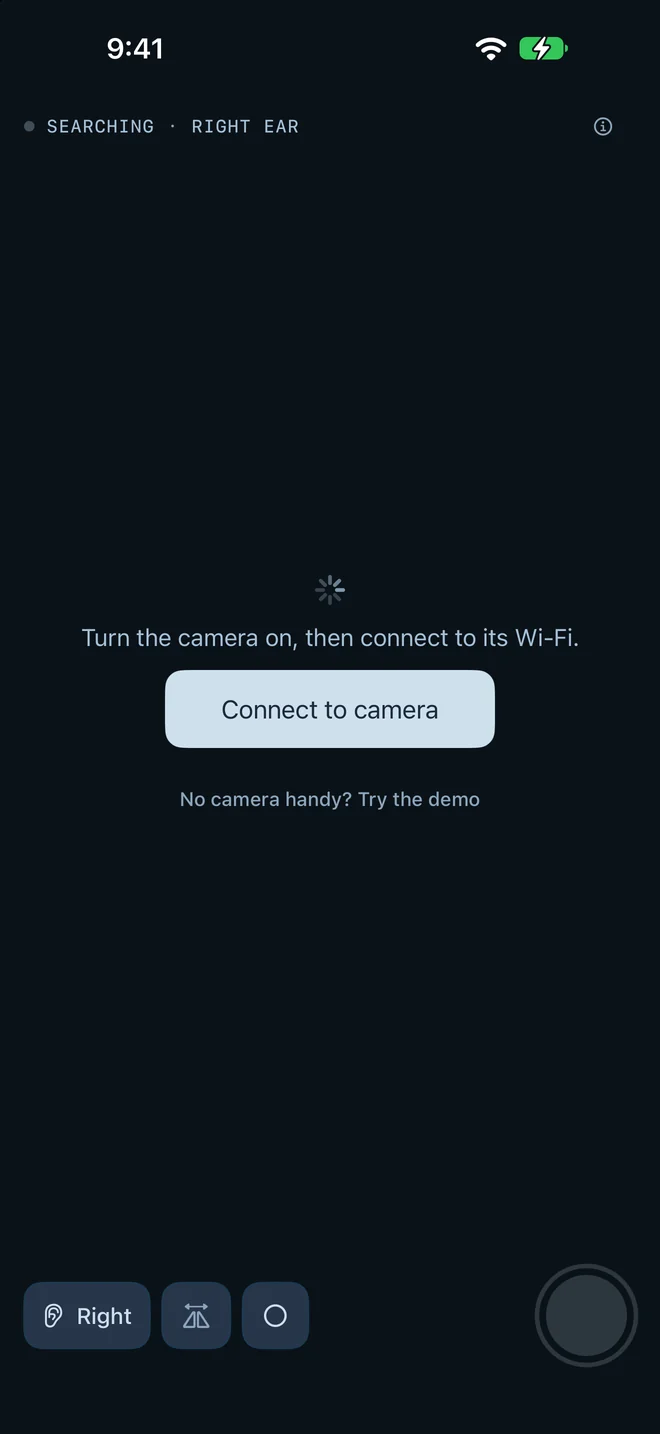
It says SEARCHING and no video comes
Your iPhone is probably not on the camera's Wi-Fi. Tap Connect to camera. If the camera's name isn't in the list, open Settings, Wi-Fi, pick the camera's network, then switch back to Spade Cam.
The camera's network has no internet. That is expected. Stay joined while you use the camera.
I tapped Don't Allow on Local Network
Spade Cam needs Local Network access to reach the camera. Open Settings, Privacy & Security, Local Network, and turn on Spade Cam. Then reopen the app.
My camera isn't supported
If you are on the camera's Wi-Fi, Local Network is on, and the screen still says SEARCHING, your camera likely uses a different protocol. Check its network name against the compatibility list.